A personal admin I run every day — source-available, in beta, yours to build
I built myself a personal admin.
It reads my inbox, writes my morning brief, drafts my replies, and texts me what matters — and it shows its work. Here's how I built it, so you can build your own.
The problem
Your inbox is noise and your calendar is chaos. The assistants bolted onto Gmail — Gemini, or Claude and ChatGPT once you connect them — still hand you one summary per email. None of them actually run your day.
How it works
No magic. Four steps.
Here's the whole loop, start to finish — so you know exactly what it's doing before you trust it with your inbox.
-
It connects to your Gmail and Calendar
You sign in with Google once, on your own account, and grant the permissions it needs: read your mail and calendar, draft replies, and — only when you approve — send a reply or add an event. Never on its own.
-
It reads the day and groups what matters
It folds the back-and-forth into one topic per real thing, reads dates out of flyers, and remembers the people who keep coming up — clients and vendors as much as family.
-
It writes your brief and drafts your replies
A short morning read of what actually needs you — and, where a reply is owed, a draft already written in your voice, waiting.
-
You approve — it never acts alone
Nothing sends, books, or buys without your okay. Every action lands in an audit log you can read, and any fact it learns, you can delete.
Why it's not just Gemini on your Gmail
Gemini answers. Coco runs your day.
Connect any LLM to Gmail and it will summarize an email — when you ask. Here are three things it structurally can't do, because it waits for you, forgets you between chats, and reads one message at a time.
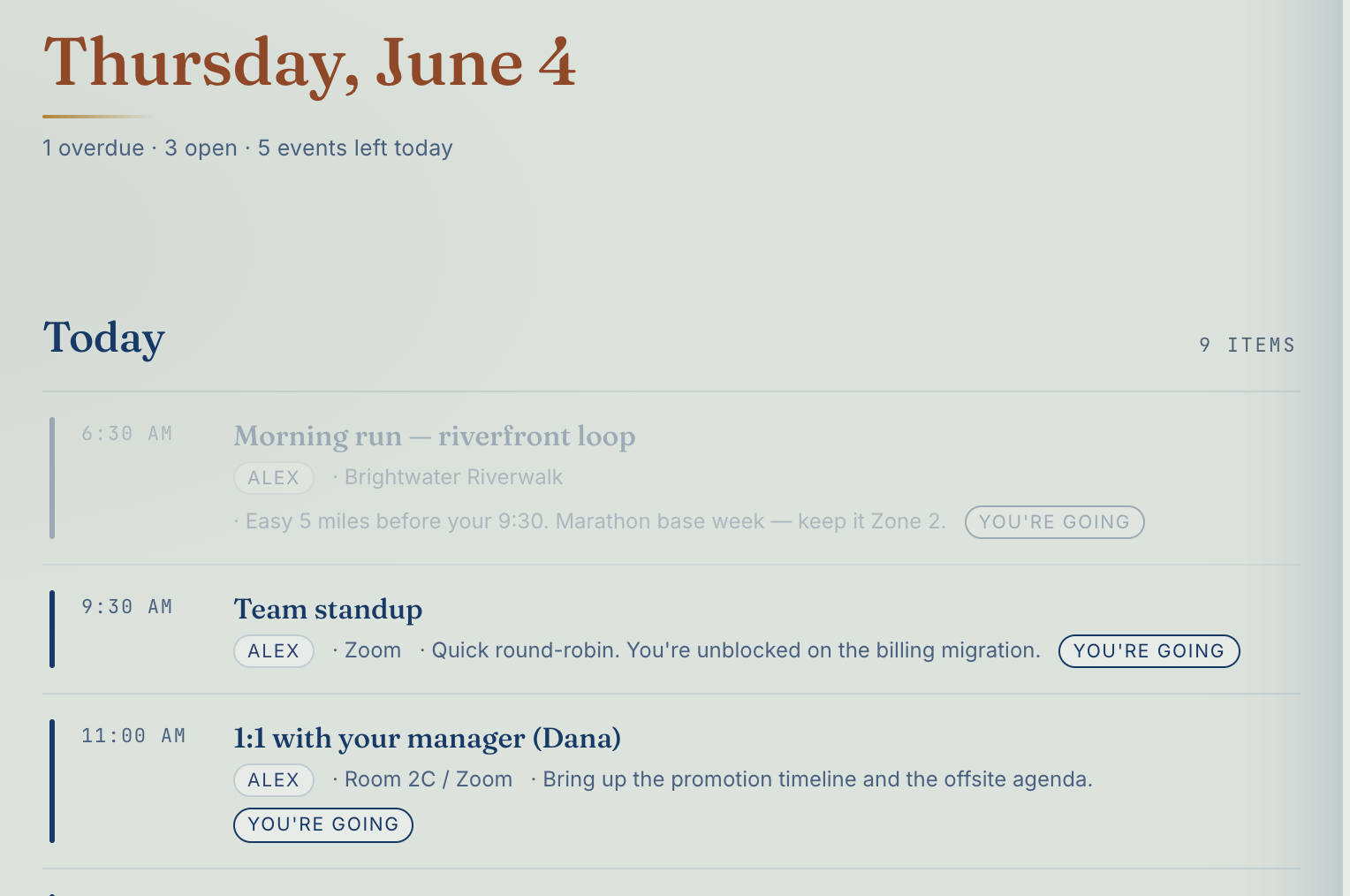
Gemini waits for a prompt. Coco already ran your morning.
Your whole day, already laid out
Connect Gemini to Gmail and you still have to ask — "summarize my inbox" — every single morning. Coco isn't a chat box. It's a dashboard that has already built your day by the time you're up: what's happening, what to close, what's coming. You scan it in thirty seconds. You never type a thing.
What you're seeing: a real morning laid out as a dashboard — not a chat you had to start.
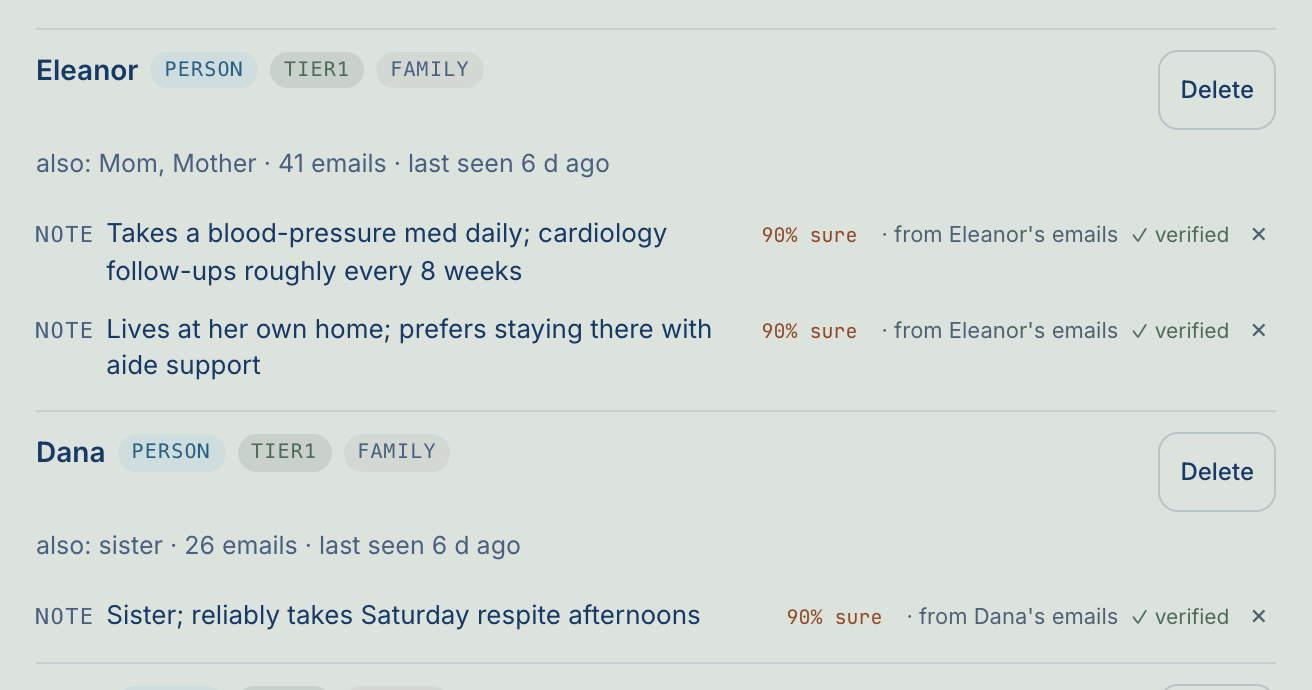
Gemini forgets you between chats. Coco remembers for good.
It already knows your people and your world
Every LLM chat starts from zero — you re-paste who your kids are, who your clients are, where you live. Coco keeps it: the people who recur, their roles, the places in your orbit, each traced to the emails it learned them from. You never re-explain who's who.
What you're seeing: Coco's standing memory of the people in one life — names, roles, how often they're in touch.
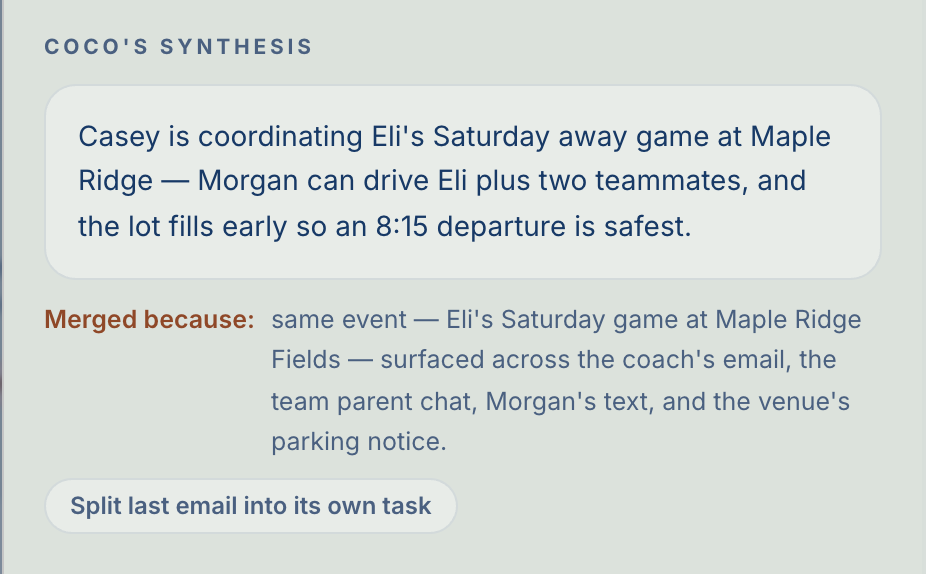
Gemini reads one email. Coco reads the whole topic.
One topic, not ten emails
A single real thing — a carpool, a renewal, a party — never arrives as one email. It's a flyer, two follow-ups, a reply from a different address, a calendar invite. Ask Gemini and you get ten separate summaries. Coco folds all of it into one item — across senders, across days — and tells you exactly which messages it pulled together.
What you're seeing: one task, with Coco's plain note on why it merged — the same game pulled from the coach, the team chat, a text, and the venue's parking notice.
Moments that feel like magic
Things you can't prompt your way to
Same admin — these are the parts that land precisely because no chat box, however clever, is built to do them.
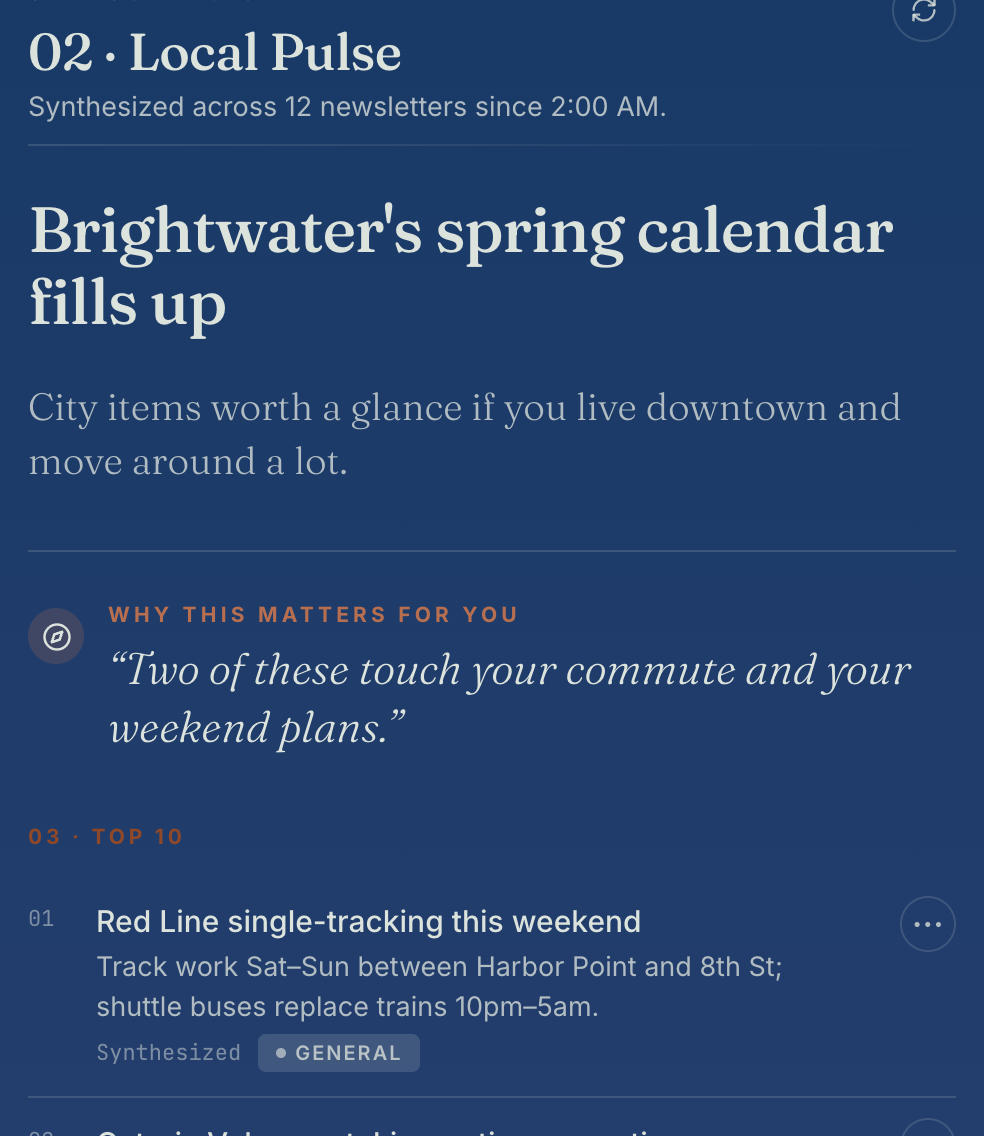
Gemini summarizes a newsletter you point it at. Coco read all twelve — unasked.
It read the newsletters you never opened
You subscribed to a dozen newsletters and read none of them. Overnight — no prompt, no schedule you set — Coco read all twelve and flagged the two that actually touch your week: the weekend track work on your line, the patio that books out before you'd think to call. A chatbot summarizes a newsletter when you ask; it doesn't know which item collides with your commute.
What you're seeing: "Synthesized across 12 newsletters," with the items that touch your commute and weekend pulled to the top.
Gemini drafts what you paste. Coco drafts what it already knows.
A draft that already knows your calendar
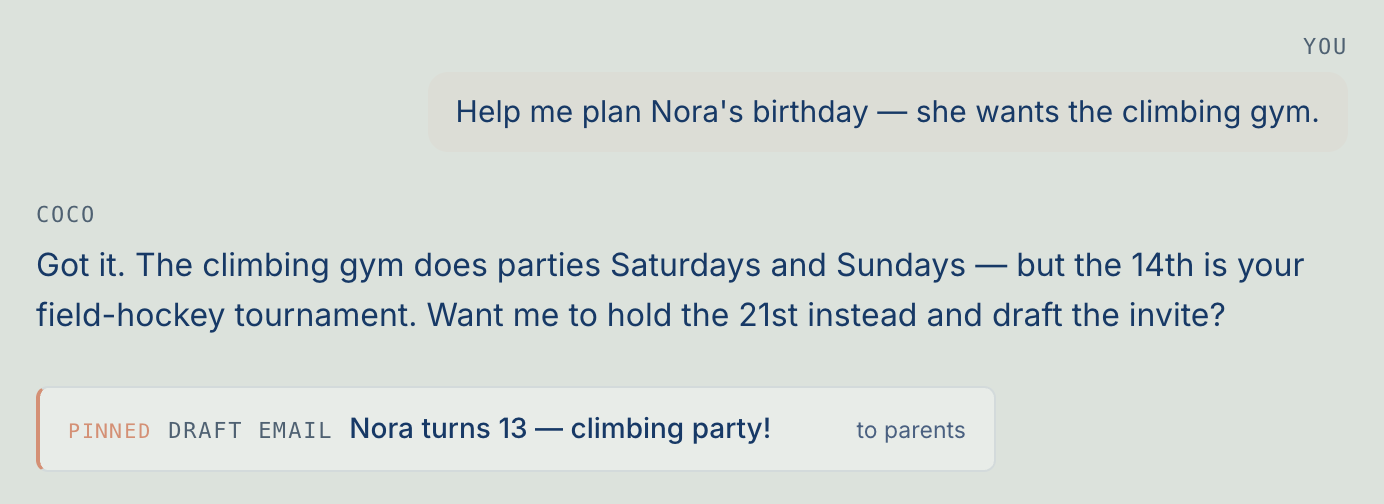
Ask any LLM to draft a reply and you first paste the thread, the dates, the context. Coco's draft already knew: the climbing gym only does weekends, the 14th is the field-hockey tournament — so it offered the 21st and wrote the invite. You pasted nothing. You just say yes.
What you're seeing: a drafted party invite that routed around a calendar conflict on its own.
Gemini lives in a browser tab. Coco texts you back — and remembers.
Text it like a person, from your own number
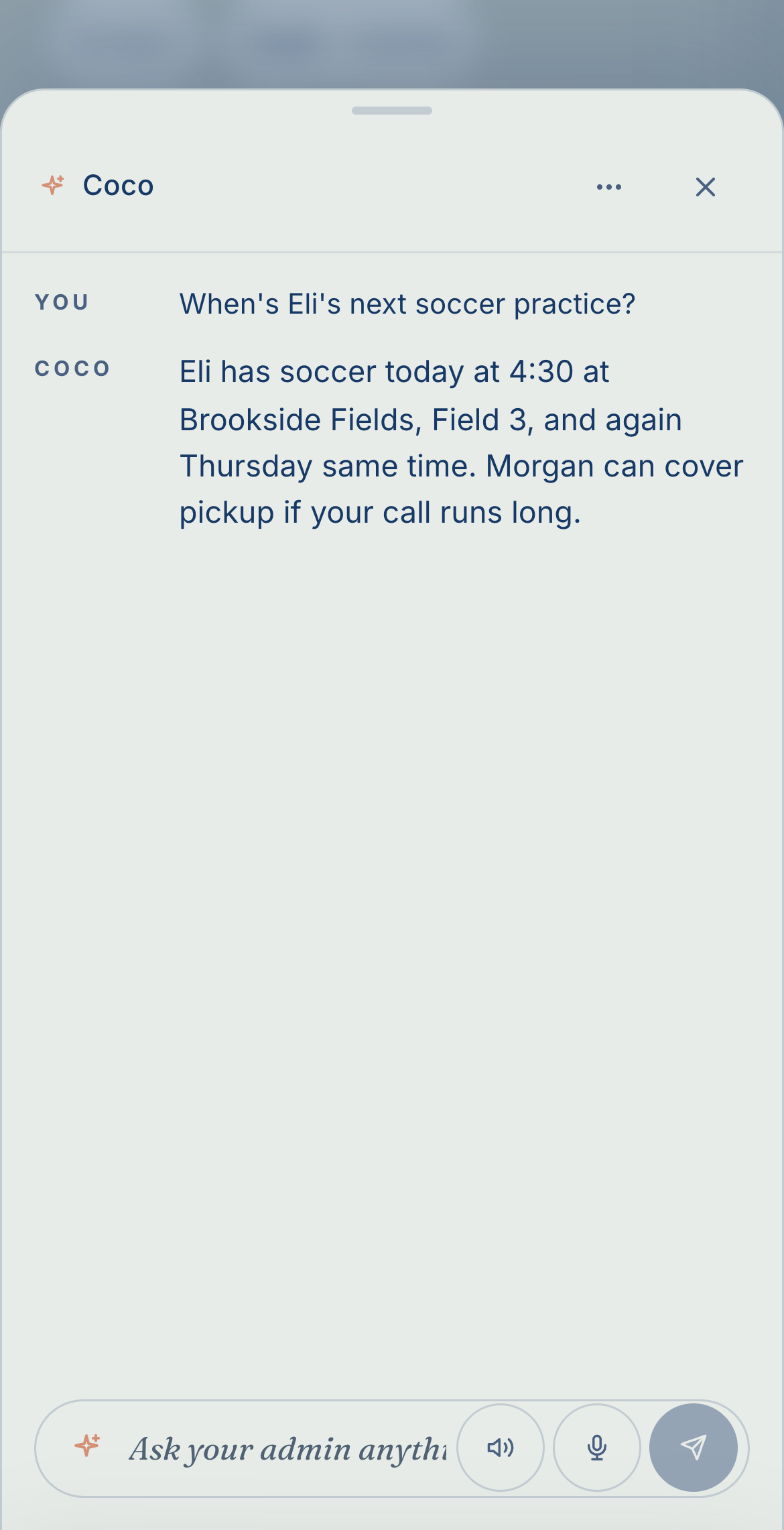
No new app, no browser tab. Text Coco from iMessage the way you'd text a partner, and it answers from everything it's been tracking all week — the schedule, who can cover, what's still open — not a blank conversation that forgot you the moment you closed it.
What you're seeing: a reply on a phone that already knew Eli's practice and that Morgan could cover pickup.
Every screen here is the live demo, captured across different lives — a solo professional's day, a parent's pickups, a daughter caring for her mother. Same admin, whatever yours looks like.
What It Does
The left column ships in the build you'll run. The right is what I haven't built yet.
Working today
- Writes your morning brief — reads the day's Gmail and Calendar and gives you one short read: the few things that need you, in plain language, not a pile of forwarded email.
- Groups by topic, across days — folds related mail and events into one topic that sticks — the field trip, the renewal — instead of treating every email as brand new.
- One thing, not ten emails — when the same plan lands across five threads and three senders, it collapses them into a single item instead of five duplicates.
- Reads the flyer — when the date and RSVP are buried in an image — a school PDF, a club flyer — it reads the text out so the deadline never slips. Only for senders you already trust.
- Answers about anything on screen — open the chat anywhere and it can pull a Gmail thread, check a calendar event, search what it remembers, look something up on the web, and draft a reply — never sending without you.
- Nudges, never sends — surfaces a ready-to-go draft when something looks like it needs a reply, then waits for your okay. Nothing leaves on its own.
- Remembers your people — learns the names that recur — a partner, the kids, a key client, the vendor you always chase, the school — and carries them everywhere, so you never re-explain who's who.
- Your accounts, locked down — reads your mail and calendar, sends and adds only what you approve, and never deletes a thing. Runs on your own database, with prompt-injection defenses and an audit log of every action it takes. See SECURITY.md.
- Built like a newspaper — a calm serif layout with a focus mode (⌘. / Ctrl+.), dark mode, and a real empty, loading, and error state on every screen.
What's next
- Does it, not just teed up — books the table and places the order itself, so you skip even the final tap.
- Reaches you anywhere — texts you over plain SMS, not just iMessage, so it works without a Mac left running.
- Picks up the phone — makes and takes the routine calls you'd rather not — the pharmacy, the reschedule, the hold music.
- A voice that sounds human — swaps the flat browser voice for one you'd actually want reading you the brief.
Is it safe?
It touches your inbox. Here's the deal.
It runs on your own accounts. Here's exactly what it asks Google for when you sign in — and the lines it won't cross with those permissions.
What it asks Google for
- Read your email — to build your brief and pull up a thread when you ask.
- Read your calendar — to see what your day actually holds.
- Draft replies — write a reply in your voice and save it as a draft in your account.
- Send a reply you've approved — the consent screen calls this "send email on your behalf." Coco only ever uses it on the exact draft you've tapped to send.
- Add a calendar event you've asked for — the consent screen calls this "view and edit events." Coco only adds the event you told it to.
What it never does
- Send anything without your explicit yes — every reply waits for your one tap; nothing leaves on its own.
- Add, move, or delete an event you didn't ask for — it only makes the calendar change you told it to make.
- Delete or empty your email — it never trashes your mail, and never asked Google for the permission to.
- Let anyone else in — only the address you list can sign in. Leave it blank and the door stays shut to everyone but you.
- Share your inbox, or train an AI on it — it lives on your own accounts, not a shared Coco service; Anthropic's API doesn't train on what you send, and no one else ever sees your mail.
When you sign in, Google's screen will show those broad phrases — "send email on your behalf," "view and edit events." That's expected, not a red flag: Google's consent screen has no "send only what the human approved" setting, so it's all-or-nothing. Coco asks for the full send and calendar permissions, then only ever uses them on the one thing you've tapped to confirm. The exact scopes, the threat model, and the defenses are in SECURITY.md.
Build your own
Pick your path
Same personal admin at the end. Pick the lane that fits how you like to build — the code is source-available for personal use, and each lane has its own steps below.
Beginner
No code about an hour
Claude Code walks you through every step — the Google sign-in screens, the database, the deploy — pausing for your input and checking each one before it moves on. The closest thing to a white-glove install. You never open a terminal.
- A Google account
- Claude Code
Intermediate
A terminal an afternoon
Clone it, run it locally, read your brief, then deploy. The hands-on path if you like to understand exactly what you're shipping.
- Node & Git installed
- Comfortable in a terminal
Advanced
A developer about an hour
You already ship on Next.js and Vercel, so you skip the hand-holding — fork, wire up the accounts, customize, and add iMessage texting.
- You know Next.js / Vercel
- A Mac, for texting
| Service | What it's for | Minimum you need |
|---|---|---|
| Google account | Sign-in, Gmail, Calendar | Free |
| Vercel | Hosting + cache | Hobby (free) |
| Neon | Postgres database | Free tier |
| Claude | The brain, and the setup | Claude Pro |
| iMessage | Texting (optional) | Built into macOS |
Building the Advanced way with ChatGPT Codex instead? Swap Claude Pro for ChatGPT Plus — everything else is the same.
The code is source-available — yours to run for personal use. Fork github.com/gzones1974/coco-personal-admin and follow your lane below. The live demo shows you exactly what you're building.
Texting needs a Mac. The dashboard, brief, and voice run anywhere. Coco only texts you from a Mac that stays on — it reads Apple Messages. On Windows, you skip the texting and keep the rest.
Your data stays yours. It runs on your Vercel, your database, your Google sign-in. No shared server. No one sees your inbox.
You already ship on Next.js and Vercel — the work here is wiring up accounts, not writing code. Use whatever coding agent you already work in; ChatGPT Codex is a great fit for the fork-and-customize parts.
-
Fork the repo
Fork coco-personal-admin, clone it, and run
npm install. -
Get a Claude API key
Make a key at
console.anthropic.comand add a little credit — this is what powers Coco's day-to-day work once it's running. -
Add your storage
Create a Postgres database and a Vercel KV store. Both have free tiers.
-
Set up Google sign-in
The fiddly one — about 15 minutes. At
console.cloud.google.com:- Enable the Gmail API and Calendar API.
- Make an OAuth client (Web). Add yourself as a test user.
- Add the redirect
https://your-coco.vercel.app/api/auth/callback/google.
Scopes, and the scary warning
Coco asks for
gmail.readonly,gmail.send,gmail.compose,calendar.readonlyandcalendar.events. It reads your mail and calendar; thesendandcomposescopes let a draft you approve go out, andcalendar.eventslets it add an event you ask for — nothing sends or changes on its own. Google warns "this app isn't verified" because it's your private build, not a published product — that's expected. You're a test user; click Advanced → continue. (Tokens expire after 7 days in test mode; just reconnect, or publish the app.) -
Add the env vars
Paste your keys into Vercel → Settings → Environment Variables.
ANTHROPIC_API_KEYNEXTAUTH_SECRETNEXTAUTH_URLGOOGLE_CLIENT_IDGOOGLE_CLIENT_SECRETCRON_SECRETNEXTAUTH_ALLOWED_EMAILS
Set
NEXTAUTH_ALLOWED_EMAILSto your own Google address (comma-separated for more than one) — only those can sign in. Skip it and the door stays locked to you.Generate the secrets
openssl rand -base64 32 # NEXTAUTH_SECRET openssl rand -hex 32 # CRON_SECRETPOSTGRES_URLand theKV_*vars get injected when you attach those stores — you don't add them by hand. Everything else is in.env.example. -
Run the migrations
npm run db:migratebuilds the tables.No terminal?
Open your fork on GitHub → Code → Codespaces → Create, then run
npm installandnpm run db:migratein the browser. -
Deploy, then attach KV
Import the fork on Vercel and deploy. Add a KV store under Storage, then redeploy. The cron jobs wire up from
vercel.json. -
Make it yours
Tell Coco who's in your life — every field is optional, so a solo setup just deletes the spouse and kids lines. Edit a few typed files; this is the real one:
lib/familyContext.ts— you, your spouse, town, kids, clubs.lib/focusAreas.ts— the topics your brief should sharpen on.lib/synthesisComposer.ts— Coco's voice (searchYou are Coco).
export const FAMILY: FamilyContext = {
  name: "<your name>",
  spouse: "<spouse, or delete>",
  spouseEmail: "<spouse email>",
  town: "<Your Town, ST>",
  kids: [
    { name: "<kid>", grade: 4, school: "<school>", activities: ["<activity>"] },
  ],
  schoolYearNote: "<a note on the year>",
  clubs: ["<club>"],
  neighboringTowns: ["<nearby town>"],
  personalDomains: ["gmail.com", "<school domain>"],
};
It stays yours. This lives in your fork, on your accounts. No one else sees it.
-
Sign in
Open your URL, sign in with Google, approve access. Your first brief builds in seconds.
-
Turn on voice
Tap the sparkle button (or ⌘K), then the mic. Tap play to hear replies. Nothing to set up.
-
Optional: texting Mac
Run the daemon so Coco can text you:
- Add
IMESSAGE_DAEMON_SECRET(openssl rand -hex 32) andIMESSAGE_DAEMON_USER_IDto Vercel. cd tools/imessage-daemon && npm install.- Give Terminal Full Disk Access in System Settings.
node daemon.js --init, thennode daemon.js. Allow it to control Messages.- Text
/coco-channelin a thread to pick it. Full steps live intools/imessage-daemon/README.md.
- Add
New to this stack but fine in a terminal. Set aside an afternoon.
Install the tools
Node 18+, Git, and a code editor like VS Code. Check with
node -v.Make the accounts
GitHub, Vercel, a Postgres (Neon), and Anthropic. Only Claude is metered.
Fork, clone, install
Clone your fork of coco-personal-admin,
npm install, thencp .env.example .env.local.Fill in the env file
Set each value. Make secrets with
openssl rand -base64 32andopenssl rand -hex 32.Set up Google sign-in
Follow the Advanced lane's OAuth steps. Add a localhost redirect too, for testing.
Run it locally
npm run db:migrate, thennpm run dev. Sign in and check your brief before you ship.Make it yours
Edit
lib/familyContext.tsandlib/focusAreas.ts. The example is in the Advanced lane.Deploy
Import the fork, paste your env vars, add a KV store, point
NEXTAUTH_URLat the live URL, redeploy.Voice and texting
Voice needs no setup. For iMessage, run the daemon on a Mac — see the Advanced lane.
Never written code? Let Claude Code do the setup with you — it walks you through every screen, asks before each step, explains as it goes, fixes its own errors, and you can stop any time. First-timers, give yourself an evening.
The easy way about an hour
Open Claude Code
Open Claude Code (
claude.com/claude-code). It drives a setup like this end to end, pausing for you at each step.Point it at an empty folder
Make a new folder and let the assistant work there. It will fork the repo and set everything up inside it.
Paste this
Help me set up my own Coco (https://mydashy-demo.vercel.app) from
https://github.com/gzones1974/coco-personal-admin. Walk me through it
end to end: fork the repo, make the accounts, set up Google sign-in,
deploy, and fill in my family details. I'm on a Mac — set up texting too.
Answer and approve
It asks about you, then does the technical parts, asking before each step. It fixes errors as they come up.
Worried about the Google sign-in? That's the one step that looks technical — and it's exactly the part the assistant walks you through, screen by screen, including Google's "this app isn't verified" warning (expected: it's your private build, not a published app). You can stop and ask it anything as you go, and the full written guide is in the repo if you'd rather read along.
Heads up: this hands-on route has a few copy-paste commands (all in your browser — nothing to install). The assistant route above runs them for you.
Fork the project
Make a GitHub account. One click on Fork at coco-personal-admin copies it to you.
Sign up for the free accounts
Vercel (hosting), Neon (database), Anthropic (the brain). Free tiers everywhere except the AI. Save each key.
Put it online
In Vercel, import your fork and click Deploy. An error the first time is normal.
Paste your keys
Add each key under Settings → Environment Variables. Make secrets at
generate-secret.vercel.app.Set up Google sign-in
Follow the Advanced lane, slowly. Get the redirect URL exactly right.
Give it a memory
On GitHub: Code → Codespaces → Create. Run
npm installthennpm run db:migrate.Make it yours
Open
lib/familyContext.ts, click the pencil, fill in your details, commit. No spouse or kids? Delete those lines.Sign in
Open your address, sign in with Google. You built it.
Questions
What do I need to pay for?
Hosting (Vercel), the database (Neon), and Google sign-in are all free tiers. The one paid piece is the AI: a Claude Pro subscription. (Building the Advanced way with Codex instead? ChatGPT Plus.) That's it.
Does this work with ChatGPT Codex instead of Claude?
For the developer paths, yes. On the Intermediate and Advanced lanes, Codex is a great driver for the fork-and-customize work — and once Coco is running it calls Claude's models either way. For the no-terminal Beginner setup, we point you to Claude Code instead: it's built to walk a non-developer through the Google sign-in screens and validate each step before moving on, which is exactly what a first install needs. Codex is a strong coding agent; it just isn't a setup concierge.
Do I need to code?
No. The Beginner lane has Claude Code do the setup with you. There's also a click-through path with a few copy-paste commands, no app to install.
I don't have kids — is this still for me?
Yes. The family details are optional — delete the lines you don't need. It runs the same for a solo professional, a couple, or anyone with a noisy inbox, and it remembers clients and vendors exactly the way it remembers a school or a coach. The brief, the topics, the drafts, the memory — none of it needs you to have a household.
Can I set it up for a parent or someone I care for?
You can. One thing to understand first: each Coco runs on one person's Google account, so you'd set it up on theirs (or run it from your own account, if that's where their mail reaches you). It drafts and sends only what you approve, never deletes their mail, and the audit log lets you see everything it's done on their behalf. Treat it as a helper you supervise, not an autopilot.
Windows or Mac?
Either, for everything but texting. The dashboard, brief, and voice run in any browser. The iMessage texting needs a Mac left on.
Does it really text me?
Yes, on a Mac. Coco drafts a reply, you approve it, and a small program sends it from your own number. It only reads your messages and sends what you okay.
Does it buy or book things on its own?
No. Coco gets you to the one-tap moment — a reservation page with the date and party size filled in, a cart with the right items, a draft ready to send — and you do the final tap. It never spends money or sends mail on its own.
Can it talk? Why robotic?
Yes — tap the mic to speak, tap play to listen. The default voice is your browser's, so it's a little flat. You can swap in a natural voice later.
Is there one chat or many?
One. A single sparkle button floats on every screen. Ask it anything, and when you open an item first it picks up that context automatically — same chat, now answering about that exact thing. A small "Asking about" tag shows what it's scoped to; clear it to go back to general. ⌘K opens it too.
What is "Coco's synthesis"?
It's the short read Coco writes for each thing — the decision, the date, what's owed, what to bring. You read Coco's summary, not a wall of forwarded email. When it isn't sure, it says so instead of guessing.
How do I know why it concluded something?
Open the item and it shows its work — who and what it read, when, and the source email behind each point. Settings keeps a full audit log of every action Coco's tools have taken. It's a personal admin you can check, not a black box.
How do I review what it did, or undo something?
Two places. Settings keeps an audit log — every action Coco's tools have taken, in order — so you can scan the week at a glance. And anything it remembers, you open and delete with one tap; a merge it suggested undoes the same way. Nothing it does is permanent or hidden from you — useful if you're keeping an eye on it for someone else.
Why does it bundle some emails together?
One real thing — a field trip, a renewal — usually arrives as a back-and-forth. Coco folds the whole thread into one topic and shows a small "+N" for the rest, so your list has one row, not ten. When two separate threads are clearly the same thing, it asks before merging them — and a tap undoes it.
It pulled text out of an image — how?
Some senders — a school, a club — send the real details inside a flyer image. For senders you already trust, Coco reads the text out of the image (Haiku 4.5) so it doesn't miss the date. It only does this for people you actually correspond with.
Which model?
Claude Sonnet 4.6 writes the brief, runs the chat, and clusters look-alike threads. Haiku 4.5 does the fast, cheap work in the background — sorting, extracting, and reading text out of image-only emails.
Is my data private?
Yes. It runs on your Vercel, your database, your Google sign-in. There's no shared server in the middle, and only the email address you list can sign in. Your prompts go to Claude's API to do the thinking — and Anthropic's API doesn't train on what you send it.
What permissions does it ask Google for?
More than just "read," and the consent screen will show it. Coco asks to read your mail and calendar, draft replies, send a reply you've approved ("send email on your behalf"), and add an event you've asked for ("view and edit events"). Google's permission model has no "only what the human approved" option, so the grants read broad — but Coco only ever uses send and calendar after your one-click confirmation, and it can't delete your email at all. The full breakdown is in the "Is it safe?" section above.
Can it look things up on the web?
Optionally, yes. Add a search key and the chat can look things up online — a phone number, an address, a fact to check — right alongside your mail and calendar. It's off until you turn it on.
Can my partner share it?
It's built for one person and one Google account. A couple can share an account, or each build their own. Every build is separate.
What do I maintain?
Very little. Keep your Claude subscription active, and sign in with Google again about once a week. That's it.
Is Coco open source?
Not in the strict, OSI-approved sense — and we'd rather say that plainly than stretch the word. Coco is source-available under the PolyForm Noncommercial 1.0.0 license: the full code is public, and you're free to clone it, read it, change it, and run your own for personal, academic, or government use. The one thing the license holds back is commercial hosting — running Coco as a paid service for other people. That carve-out is the point: the code stays open for you to build your own personal admin, while no one can spin it up as a paid hosted competitor. Personal use is exactly what this site is for.
Common snags
The build failed
FixA missing env var, usually. Check all of them are set for Production, then redeploy.
Sign-in loops
FixThe redirect URL must match exactly: https://your-coco.vercel.app/api/auth/callback/google, no trailing slash. Check NEXTAUTH_URL too. If sign-in is refused outright, add your Google address to NEXTAUTH_ALLOWED_EMAILS.
The dashboard is empty
FixTurn on the Gmail and Calendar APIs in Google Cloud, and make sure you added a KV store. Sign out and back in.
The daemon errors on start
FixGive Terminal Full Disk Access. A 401 means the daemon secret doesn't match Vercel. macOS prompts once to control Messages — allow it.